 Strassio
A line turns into rhinestones. In a second.
Select a line, an outline or a logo, and Strassio places stones of the right size: evenly, without overlaps, with clean corners. Every rhinestone is an ordinary circle, so you cut, drill and send it to the machine just as you are used to.
CorelDRAW X7 and newerWindows, 32 and 64 bitNo card, no key
How it works
Half a minute — and the template is ready
This is what working in CorelDRAW with the Strassio panel looks like — the same steps as in the plugin.
- 1Draw a line or a shape
- 2Choose a stone
- 3Choose a method
- 4Press Create
- 5Stones in place
- 6Fill inside
- 7Ctrl+Z — undo it all
How it works
Three steps to a ready template
No more placing circles one by one. You draw as usual, and Strassio places the stones for you.
Select a shape
Any line, outline, text or logo in a CorelDRAW document.
Choose a stone and a method
Size, colour and method: along a line, along the outline or a full fill.
Press Create
The stones sit evenly, the corners are clean, and the counter shows right away how many stones you need.
Features
Everything for the template, nothing extra
Every rhinestone is an ordinary CorelDRAW circle. Then you cut, drill or save the template just as you are used to.
Along a line
An even step along any curve. At a sharp corner a stone lands exactly on the tip, with no overlaps or gaps.
Outline in several rows
Outline a shape with one or more rows, each with its own stone and colour.
Fill in rows or honeycomb
The shape is filled densely and evenly, with the gap you need between stones.
Smooth size change
Stones grow or shrink along a line — for waves, feathers and accents.
Multicolour designs
Stripes, checkerboards and patterns of different-coloured stones in one template.
Text and monograms
A name, initials or a slogan — Strassio lays out the letters in stones.
Machine drilling
A ready G-code file to drill the template on your machine, straight from CorelDRAW.
Fast even on large designs
Ten thousand stones are created without freezing — CorelDRAW stays responsive.
One undo for everything
Don't like it? One Ctrl+Z removes the whole operation, even with thousands of stones.
Work
This is what you get
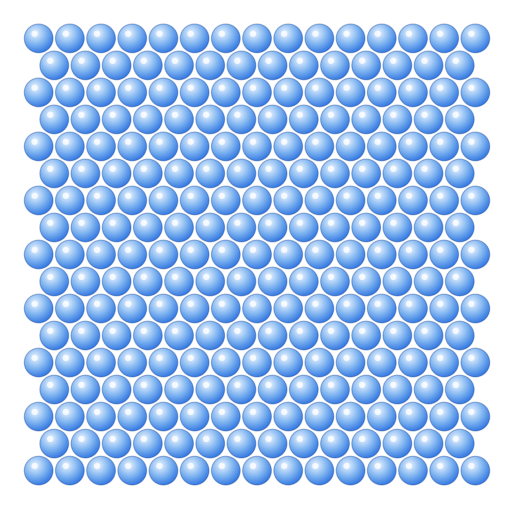
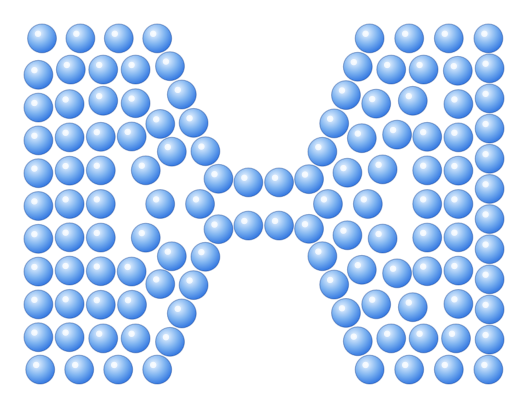
The plugin drew these templates itself, with no manual touch-ups: outlines, fills and letters.


Reviews
What craftsmen say
These are examples for now — real customer reviews will appear here.
“Laying out a logo for a T-shirt used to take me half a day by hand. Now it's a couple of minutes, and the corners are even.”
“I make honeycomb fills right in CorelDRAW and send them straight to the machine. The stone counter saves money on supplies.”
“Installed it on an old CorelDRAW X8 — it works. I moved the key to my new computer myself in a minute.”
Pricing
Try it first. Decide later.
The trial is not cut down: work on your own orders for two weeks. One key, one computer.
Free trial
- Every feature, no limits
- No key and no card
- Turns on in a minute in the Strassio bot — only a phone number needed
Strassio key
For work- One key, one computer
- New computer? Move the key yourself
- Works even on a computer without internet
- Help from the author in Telegram
Pay in cash, by card or by bank transferThe key arrives by email or in Telegram
How to buy
Four simple steps
No online shops or long forms: send a request or message us, and we'll handle the rest.
Download
Install Strassio and get the 14-day trial in the Strassio bot: in the plugin, “License…” → “14-day trial”.
Send a request
On the website or in Telegram — we'll reply and pick the right key.
Pay
In cash, by card or by bank transfer — whatever suits you.
Get your key
The key arrives by email or in Telegram. On the Activation page, get a code for it and paste it into the plugin.
FAQ
The essentials
Do I need the internet?
Not for working. You get the activation code on the website from any device, even a phone. Normally the plugin checks the license once a day and keeps working for up to 14 days without a connection. For a computer with no internet at all, tick “This computer has no internet” on the Activation page — then the plugin works until the key expires.
How many computers does a key work on?
One key, one computer. Reinstalling Windows on the same computer doesn't use up a place — just enter the key again.
I bought a new computer. What now?
On the Activation page enter the key, your email and the new computer's code, then press “Move to this computer”. You can move it once every 7 days; if you need it sooner, message the author. If the old computer broke, release it on the My license page.
Which CorelDRAW versions are supported?
CorelDRAW X7 and every newer version, 32 and 64 bit. Windows only.
Can I adjust the stones afterwards?
Yes. Every rhinestone is an ordinary circle: move, delete and recolour it like any CorelDRAW object.
What happens after 14 days?
The plugin asks for a key. Your finished templates stay in your files — the stones are already in the document.
How do I pay?
In cash, by card or by bank transfer — whatever suits you. Send a request or message us in Telegram, and we'll send you the key.
Try it on your own shape
Download Strassio, select any logo — and a second later you'll see a rhinestone template.